MoviePipe.AI Workflow Guide
Everything you need to know about turning a script into a full production tree and generating every image and video in-app, using the AI backend you connect to your project.
Getting Started
MoviePipe.AI turns any script into a step-by-step production pipeline, then generates each asset directly in the app using the backend you pick for the project. No more copy-paste round trips — click Generate on a prompt card and the image or video lands back in your project automatically. Here is how to begin.
Create Your Account
Sign up with Google or with email + password. New accounts receive 50 free credits to start your first project right away.
Create a New Project
Navigate to New Project from the sidebar. Give your project a title that describes what you are making.
Pick a Flow
Choose Script to Movie if you already have a script or story you want to break into a cinematic production tree, or Marketing Content if you have a short concept and want the AI to write a viral short-form script for you. See Choosing a Flow for the full breakdown.
Choose a Style Preset
Each flow comes with its own set of style presets — cinematic looks for Script-to-Movie, social-media aesthetics for Marketing Content. The selected preset is embedded into every prompt your project produces. Switching flows swaps the available presets automatically. You can also add an optional Custom style direction note to layer your own look on top of the preset.
Provide Your Source
For Script to Movie: paste the full text of your script in the source area. Word count determines extraction cost. For Marketing Content: type a 3–10 sentence concept, then click Generate Script — the AI iterates over multiple passes to maximize the viral score before you extract.
Extract Your Production Breakdown
Click Extract and the AI will analyze your script, identifying every character, prop, world, scene, audio cue, and dialogue line. These are organized into a full production tree that you will work through step by step.
Connect a Backend & Generate In-App
Pick a Generation backend for the project (Higgsfield, Runware, Google Gemini, or a custom ComfyUI box), then click Generate on any prompt card. The asset is produced and saved straight into your project — no copying prompts or uploading files by hand. See Generation Backends for how each one connects.
Tip: Detailed scripts (or detailed concepts in the marketing flow) extract better — describe characters, settings, emotions, and key beats and the AI will produce richer prompts.
Choosing a Flow
MoviePipe supports two top-level content flows. Pick the one that matches what you are making. You can switch between them at any time on the New Project page — your last choice is remembered. The same page is where you set the style preset, an optional custom style direction, and the generation backend for the project.
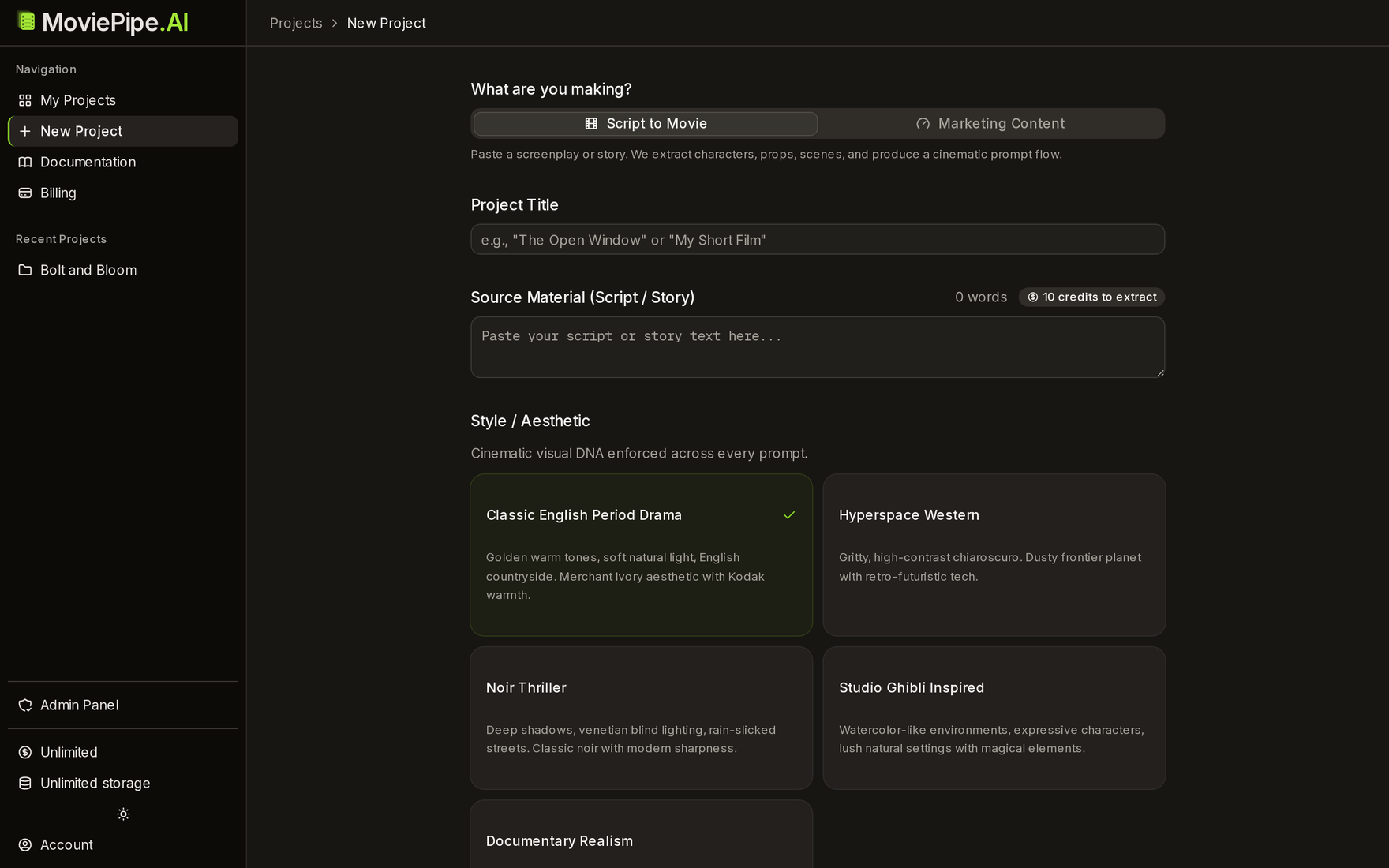
Script to Movie
Paste an existing screenplay, short story, or narrative outline. The AI decomposes it into characters, worlds, props, scenes, audio, and dialogue — producing cinematic image and video prompts for Higgsfield Cinema Studio.
Best for: short films, narrative trailers, music videos, story-driven content.
Marketing Content
Describe a short concept (3–10 sentences). The AI brainstorms a viral short-form script across multiple iterations (with a viral score and self-critique), then decomposes the final script into a short-form social aesthetic prompt flow.
Best for: TikTok/Reels promos, product ads, GRWM, before/after, authority clips.
Each flow produces the same downstream production tree — the difference is the starting point and the look of the generated prompts. Marketing-content projects also get a Script tab in the workspace showing the generated script, viral score, scenes, hook, and CTA. Script-to-movie projects skip that tab since you provided the script directly.
Marketing Content Flow
The Marketing Content flow adds an AI scriptwriter on top of the extraction pipeline. Instead of pasting a finished script, you describe the idea and the AI writes one for you, refining it across multiple passes to maximize viral potential.
Describe the concept
In 3–10 sentences, tell the AI what you want to make: core message, target audience, product or transformation, emotional payoff. Specific is better: “a 30-second TikTok where a quirky office worker discovers a new vegan protein bar and feels confident” works better than “promote a snack.”
AI brainstorm + critique iterations
The AI writes an initial script, then repeatedly critiques and improves it across several passes. Each pass tries to raise the viral score — a measure of how attention-grabbing and shareable the script is. The default is 3 passes; you can see every iteration's score, critique, and improvements in the script preview.
Review the generated script
The preview shows the target audience, hook (the first 5 seconds), each scene with action and dialogue, the call-to-action, and the final viral score. If you do not love the result, click Regenerate to run a fresh brainstorm.
Extract into the production tree
Click Extract Assets to feed the generated script into the same MoviePipe extraction pipeline. From here, the workflow is identical to the Script-to-Movie flow — you get a tree of characters, scenes, audio, and dialogue, each with their own Higgsfield prompt steps.
Script generation is free. Iterating on the script does not consume credits — you only pay when you actually extract a script into the production tree (same tiered pricing as Script-to-Movie).
Style Presets
The style preset you choose defines the visual look and feel for your entire project. It controls lighting, camera, color grading, film stock, and mood across all generated prompts. Each flow exposes its own set of presets — cinematic aesthetics for Script-to-Movie, short-form social aesthetics for Marketing Content.
Script-to-Movie presets
Classic English Period Drama
Edwardian-era estates, warm golden afternoon light, Cooke S4/i prime lenses on ARRI Alexa Mini LF. Kodak Vision3 250D/500T film stock, 2.39:1, intimate literary mood. Merchant-Ivory aesthetic.
Hyperspace Western
Gritty frontier-planet vistas, scorching sunlight, atmospheric heat haze, retro-futuristic scrap-metal architecture. Panavision C-series anamorphic lenses on ARRI Alexa 65 — oval bokeh, horizontal blue flares, 2.39:1.
Noir Thriller
Rain-slicked streets, venetian-blind shadow patterns, neon reflections, deep blacks. RED V-Raptor + Zeiss Super Speeds, teal/orange grade. Paranoid, claustrophobic, morally ambiguous tension.
Studio Ghibli Inspired
Hand-painted watercolor backgrounds, lush natural environments, expressive cel-shaded characters, golden-hour glow, dappled forest light. Whimsical, nostalgic, bittersweet warmth.
Documentary Realism
Handheld Sony FX6, Canon CN-E primes, available light only, observational framing, motivated camera moves, natural color grading. Authentic, intimate, unvarnished.
Marketing Content presets
Aesthetic GRWM Promos
Lifestyle “Get Ready With Me” content with seamless product integration. Warm vanity lighting, eye-level selfie framing, authentic yet aspirational tone. Ideal for beauty, skincare, and lifestyle brands.
Instant Result Before/Afters
High-impact visual proof of transformation that stops the scroll in under 3 seconds. Clean split-screen or sequential reveal with sharp detail and bold result callouts. Ideal for product, health, and beauty ads.
Stop/Start Authority Clips
High-retention educational hooks that debunk myths to build instant trust. Professional three-point lighting, bold motion text overlays, and pattern-interrupt cuts. Perfect for coaches, educators, and thought leaders.
Strategic Expert Deep-Dives
Value-driven advisory content that positions you as the go-to specialist. Polished professional environment, cinematic three-point lighting, broadcast-quality aesthetic. Ideal for consultants, advisors, and premium service brands.
On-the-Ground Social Proof (Street Interviews)
Authentic vox-pop street interviews that build trust through real people and real reactions. Natural daylight, handheld roving camera, candid close-ups. Ideal for brands looking to leverage genuine social proof at scale.
Custom style direction (optional)
Beyond the presets, every project has an optional Custom style direction field on the New Project page. Use it to layer your own look on top of the chosen preset — for example “muted teal palette, heavy film grain, 35mm halation” or “bright pastel product photography, soft shadows.” Whatever you write is woven into the master style prompt alongside the preset, so it carries through to every generated scene.
How it works: The master style prompt (preset plus any custom direction) is injected into every scene-level prompt (keyframes, contact sheets, sequence grids, motion direction). Character reference prompts intentionally do not include the style to preserve clean references for Soul ID face locking -- unless you toggle on the Style Preview option.
Generation Backends
MoviePipe generates your images and videos in-app. Every prompt card has a Generate button — click it and the asset is produced and saved straight into your project (persisted to secure cloud storage). The old loop of copying a prompt, opening an external tool, pasting, generating, and uploading the file back is no longer required.
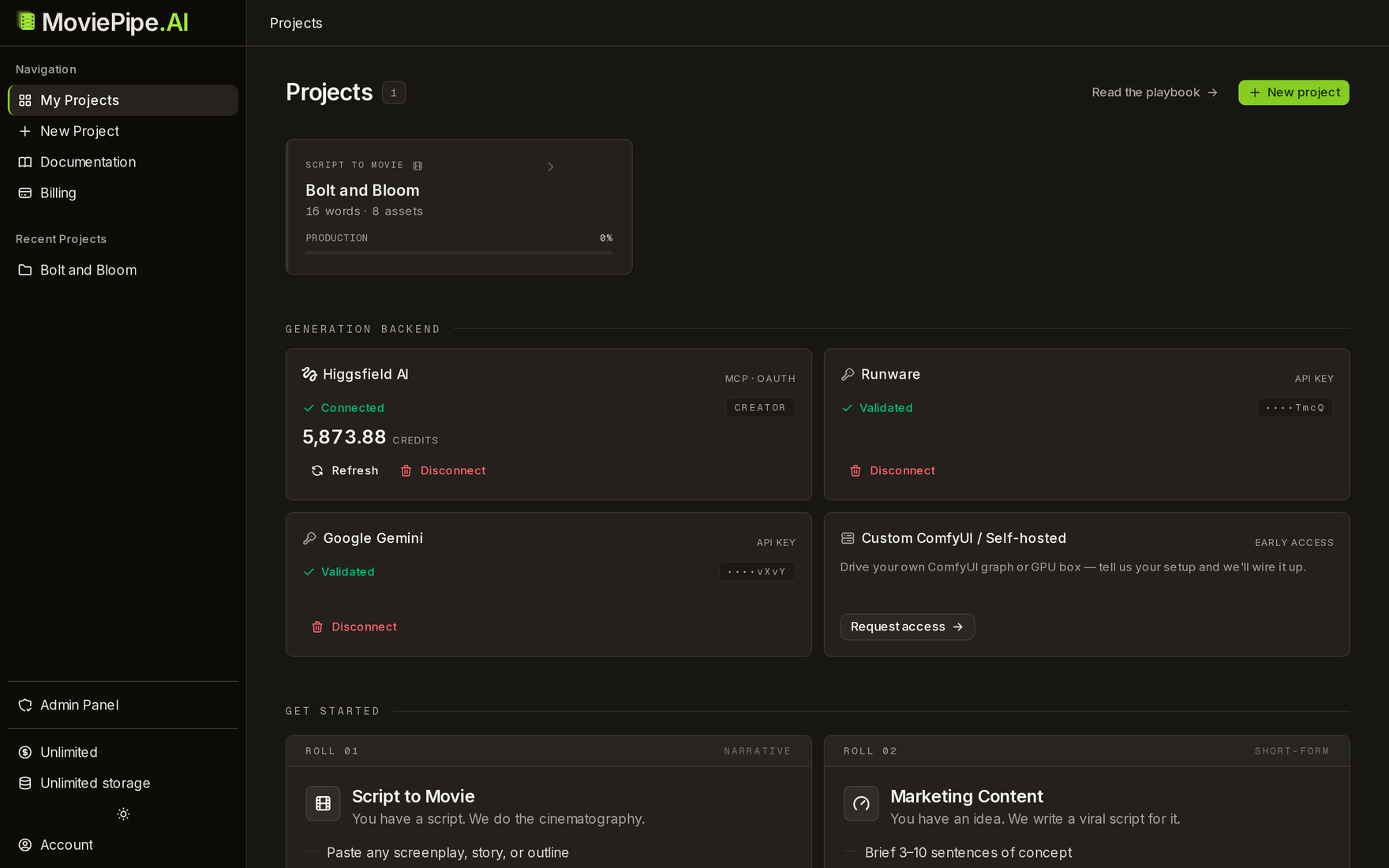
Each project picks its own backend in the Generation backend section on the project page. Choose from four options:
Higgsfield
Connect once via OAuth, then generate against your own Higgsfield subscription credits. Images use Soul, Nano Banana, or Cinema Studio; video uses Seedance, Kling, or Veo through Higgsfield.
Connect: click Connect Higgsfield and approve the OAuth prompt — no key to paste. Billing: your Higgsfield subscription credits.
Runware
Paste your Runware API key. Generates FLUX.1 images and Kling video billed directly to your Runware account.
Connect: paste your Runware API key. Billing: your Runware account — no MoviePipe credits used.
Google Gemini
Paste your Google API key. Generates Nano Banana (gemini-2.5-flash-image) images and Veo video billed directly to your Google account.
Connect: paste your Google API key. Billing: your Google account — no MoviePipe credits used.
Custom ComfyUI / self-hosted
Drive your own ComfyUI graph or GPU box. Bring whatever models and workflow you run yourself.
Connect: request access to wire up your endpoint. Billing: your own infrastructure.
Sync image generation: image backends finish inline — the result appears on the prompt card a moment after you click Generate.
Async video generation: video takes longer, so the card shows live progress and the clip lands in the project automatically when it is ready — you can keep working in the meantime.
Who pays for generation: the bring-your-own-key backends (Runware and Google Gemini) bill your provider account and do not consume MoviePipe credits. Higgsfield generation uses your Higgsfield subscription credits. MoviePipe credits still cover script extraction and prompt generation as described in Credits.
The Production Pipeline
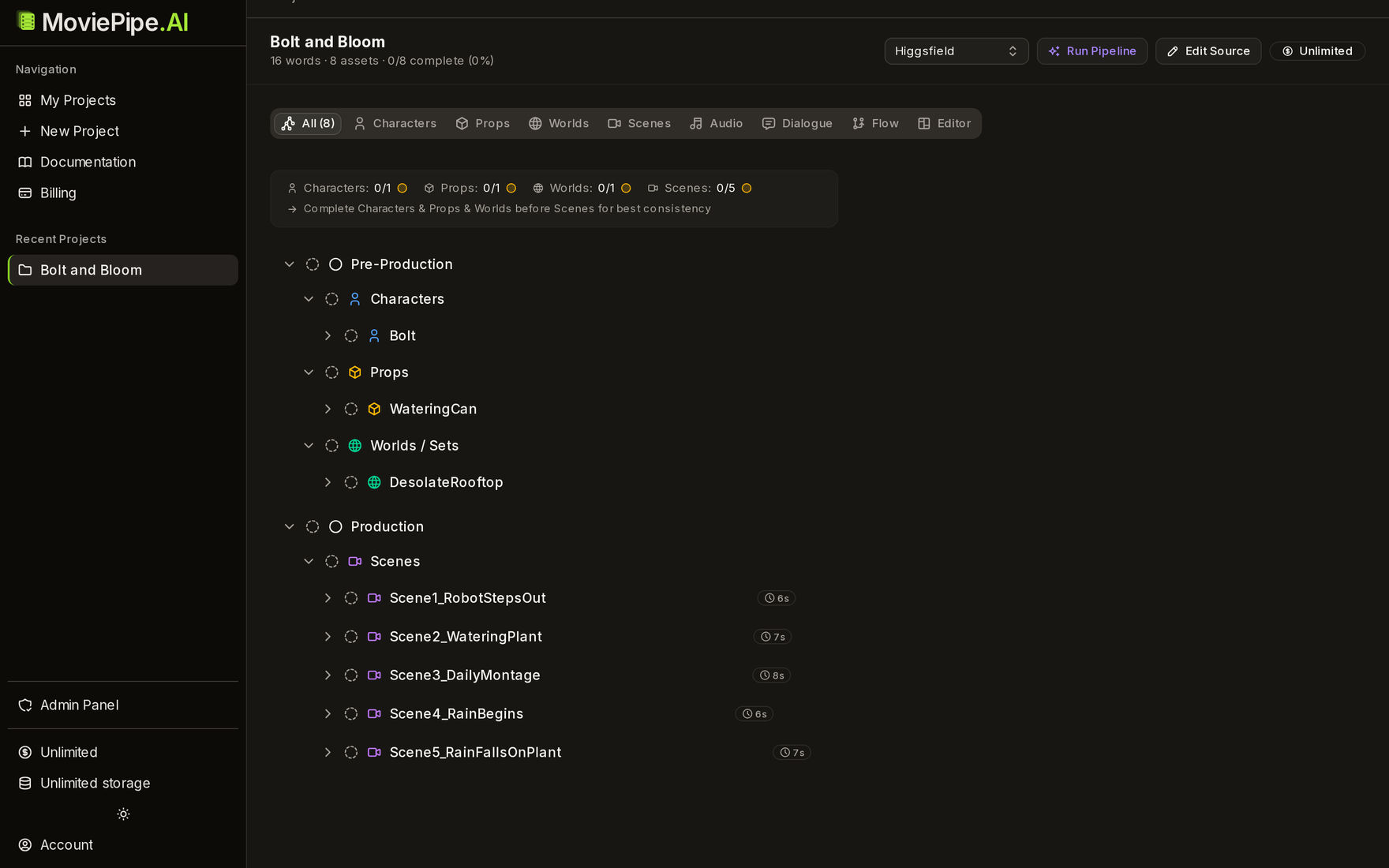
MoviePipe organizes your script into a structured production tree with a specific recommended order. Following this order ensures that each asset has the references it needs when you reach it. At each node you click Generate to produce the prompt, then Generate again on the prompt card to render the actual image or video with your chosen backend — it lands in the project automatically.
Pre-Production
1. Characters
Generate all character identity kits first. This produces the Anchor Face, Profile Anchor, and Costume Rig reference images that Higgsfield Soul ID needs for face locking across all future scenes.
2. Props
Generate prop reference images next. These are used as image references when composing scenes that feature specific items.
3. Worlds / Sets
Generate world and set designs. These establish the environments your scenes take place in and serve as visual references for scene keyframes.
Production
4. Scenes
With characters, props, and worlds ready, generate scene prompts. Each scene references the entities it contains, so their uploaded assets become image references for composition and face locking.
5. Audio / Foley
Generate ambient audio, foley, and music cues. These prompts target Kling 3.0 Audio for sound design that matches your scenes.
6. Dialogue
Generate dialogue and lip-sync prompts last. These reference the scene videos for accurate mouth movement and timing.
Why this order matters: Each phase depends on assets from the previous phase. Characters are needed as Soul ID references in scenes. Worlds set the visual environment for keyframes. Scenes must exist before you can add audio and dialogue. Following this order means you always have the references you need.
Character Workflow
Each character follows a three-step sequential workflow. Steps unlock one at a time -- you must finalize each step before the next becomes available. This ensures that later steps can reference the assets you have uploaded from earlier ones.
Anchor Face
The foundational reference image for this character. This generates a clean, studio-lit headshot on a neutral background -- specifically optimized for Higgsfield Soul ID face locking. The prompt produces a flat-lit reference with no cinematic styling applied.
Clean references by default: Character reference prompts are generated without your project style preset. This means flat studio lighting, neutral background, and no environmental or cinematic treatment. This is intentional -- Soul ID face locking works best with clean, unstylized reference images. The character's features, skin tone, and proportions are preserved without stylistic interference.
Profile Anchor
A 3/4 or profile-angle reference that gives Soul ID additional angles for consistent face generation. This step uses the uploaded Anchor Face as an image reference (with 0.8 weight) to maintain consistency.
Dependency: The Profile Anchor prompt instructs you to use your uploaded Anchor Face as an Image Reference in Nano Banana Pro. This is how the system maintains character consistency across angles.
Costume Rig
A full-body reference showing the character in their costume and wardrobe. This step also uses the Anchor Face as a reference (with 0.6 weight) for face consistency while giving more emphasis to the costume details.
Dependency: Uses the uploaded Anchor Face as an Image Reference for consistency. The lower reference weight (0.6 vs 0.8) gives the model more freedom for the full-body composition while still maintaining facial identity.
Sequential flow: Each step has a Finalize button. Click it to lock that step and unlock the next one. You can go back to a previous step if needed, but this will reset progress on later steps.
The workflow displays dependency chips showing what each step needs from previous steps and whether those dependencies have been uploaded.
Style Preview toggle: While the default behavior generates clean, unstylized character references (optimal for Soul ID), you can toggle on Style Preview when generating to see what your character looks like rendered in your chosen project style. This applies the master style prompt to the character reference, producing a stylized version.
Use this for creative visualization and mood boarding. For actual production use in Higgsfield Cinema Studio, the clean unstylized references will give you the best character consistency across scenes via Soul ID face locking.
Important: Generating the Anchor Face in-app saves it to the project automatically, which satisfies this dependency. If you instead ran the prompt in an external tool, upload the result back. The Profile Anchor and Costume Rig steps depend on this image — without it the dependency chips stay incomplete and later scene prompts that reference this character will not have a face-lock reference available.
Scene Workflow
Scenes follow a four-step sequential workflow, taking you from a still keyframe to a fully directed video clip with camera motion.
Keyframe
The hero still image for this scene. Generated using your master style prompt with full cinematic treatment -- lighting, camera, composition, and mood. This is the visual anchor for everything that follows.
Contact Sheet
A multi-frame composition showing key moments from the scene. Uses the uploaded Keyframe as a composition reference. This helps plan the visual flow before committing to video generation.
Sequence Grid
A 9-frame storyboard-style grid showing the scene progression. Uses the Keyframe as a narrative anchor. This gives you a complete visual plan for the scene before generating the final video.
Motion Direction
The final video generation prompt with camera motion, duration, motion strength, and camera velocity settings. Uses the Keyframe as the source frame for video generation. This targets Kling 3.0 for image-to-video conversion.
Character Dependencies in Scenes
Each scene knows which characters, worlds, and props it references. These dependencies are shown as colored chips below the scene node in your production tree.
Green (uploaded): The referenced entity has an uploaded asset. Its image will be available as a reference when you generate this scene in Higgsfield.
Amber (prompt ready): The referenced entity has a generated prompt but the asset has not been uploaded from Higgsfield yet.
Red (pending): The referenced entity has not been generated yet. You should generate and upload it before working on this scene.
Face lock selection: When generating the Motion Direction step (Step 4), you can select which characters to include for Kling face lock. The scene prompt will reference those characters' uploaded Anchor Face images so that Kling 3.0 maintains character identity throughout the generated video clip.
Only characters with uploaded Anchor Face assets will be available for selection. This is another reason to complete your character pipeline before starting scenes.
Clicking dependency chips: Click any dependency chip to navigate to that entity in the production tree. If the entity has an uploaded asset, clicking it will open a preview modal instead.
Dependencies & Phase Banner
MoviePipe tracks dependencies between assets and shows your progress through the production pipeline with a phase banner and status indicators.
The Dependency System
Within each asset, steps depend on previous steps. Between assets, scenes depend on characters, worlds, and props. The system tracks these relationships automatically.
Intra-asset dependencies
Within a character, the Profile Anchor depends on the Anchor Face being uploaded. Within a scene, the Contact Sheet depends on the Keyframe. These are shown as dependency chips on each prompt card, indicating what to use as an image reference and at what weight.
Cross-asset dependencies
Scenes reference characters, worlds, and props. These are shown as colored chips on the scene node. The system tracks whether each referenced entity has been uploaded, helping you identify what to complete first.
Pipeline Progress Banner
At the top of your workspace, a pipeline progress banner shows the status of each production phase. Each phase indicator uses color to communicate its state:
Green: All assets in this phase have been generated and uploaded. The phase is complete and ready to support downstream phases.
Amber: Some assets in this phase have been started (prompts generated or partially uploaded), but the phase is not yet complete.
Gray: No assets in this phase have been started yet. This phase is pending.
Red: Some assets in this phase have been invalidated due to script changes. They need to be regenerated.
Node status indicators: Each individual node in the tree also shows its status via an icon: pending, generated, uploaded, invalidated.
Uploading Assets
In the common case you never upload anything: clicking Generate on a prompt card renders the asset with your project's backend and saves it into the project automatically, so it is immediately tracked and available as a reference for downstream prompts. Manual upload is still there for when you prefer to run a prompt in an external tool, or want to drop in your own image, video, or audio.
Generate the asset
Click Generate on the prompt card to render it in-app with your project backend — any dependency references shown on the card are passed through automatically at their specified weight, and the result is saved into the project (steps 2 and 3 below are done for you). Prefer an external tool? Use Copy Prompt or the tool link, run it there, and upload the output back with the steps below.
Upload back to MoviePipe
Click the Upload Asset button on the prompt card. You can upload in three ways:
- File upload: Select an image, video, or audio file from your device. Files are uploaded to secure cloud storage.
- URL link: Paste a direct URL to the asset hosted elsewhere. Useful for linking to Higgsfield outputs directly.
- Clipboard paste: Copy an image and paste it directly into the upload dialog.
Finalize the step
After uploading, click Finalize to lock this step and move on to the next one. The node status will change from generated to uploaded.
Re-uploading assets: You can re-upload an asset at any time by clicking the Upload button again. The new asset replaces the old one. However, if downstream prompts have already been generated using the old asset as a reference, they may need to be regenerated for best results.
Re-uploading a character's Anchor Face, for example, will cause scenes that reference that character to show an invalidated status, signaling that they should be reviewed or regenerated.
Editing Your Script
You can edit your script at any time after extraction. MoviePipe uses AI-powered change impact analysis to understand what your edits affect and handle the cascade intelligently.
Source Editor
Open the source editor from your project workspace to modify the script text. The editor shows the current word count and indicates when you have unsaved changes. Make your edits, then click Analyze Changes to see the impact.
Change Impact Analysis
The AI analyzes the diff between your old and new script and produces a detailed impact report showing:
- Directly affected entities: Characters, props, or worlds whose descriptions changed. Shows severity (minor tweak vs. major rework vs. removal) and how many prompts/assets would be invalidated.
- Transitively affected scenes: Scenes that reference modified entities. These inherit invalidation from the entities they depend on.
- New entities: Characters, props, or worlds that appear in the edited script but were not in the original. These will be added to your production tree.
- Removed entities: Entities no longer present in the script. These will be archived (not deleted) so you can still access their generated prompts if needed.
How Invalidation Cascades Work
When you apply changes, the system updates your production tree in stages:
Direct invalidation
Changed entities have their descriptions updated and existing prompts marked as invalidated. The old prompts remain visible but are flagged with an amber Outdated badge. You can regenerate to update (regeneration costs credits).
Transitive invalidation
Scenes that reference changed entities also receive invalidation flags. Their prompts are marked as potentially outdated because their references have changed.
New entity insertion
Newly detected entities are added to the production tree in the correct position, ready for prompt generation.
Removed entity archival
Entities no longer in the script are moved to the archive tab, preserving all generated prompts and uploaded assets for reference.
Version history: Every time you apply changes, the previous version of your script is saved. You can view the full version history and see what changed at each point. Archived entities are tagged with the source version they were removed from.
Credits
MoviePipe uses a credit-based system. You start with free credits and spend them on script extraction and prompt generation.
Script Extraction Costs
Extraction cost depends on the word count of your script. The AI performs a multi-pass analysis to identify and decompose all entities.
| Word Count | Credits |
|---|---|
| Under 500 words | 10 |
| 500 - 1,000 words | 16 |
| 1,000 - 2,500 words | 22 |
| 2,500 - 5,000 words | 34 |
| 5,000 - 10,000 words | 46 |
| 10,000+ words | 64 |
Prompt Generation Costs
Generation cost varies by asset type. Characters cost more because they produce a full identity kit (3 steps). Generation costs are charged per L3 entity (the individual character, prop, scene, etc.).
| Asset Type | Credits |
|---|---|
| Character Identity Kit | 6 |
| Prop Design | 2 |
| World / Set Design | 4 |
| Scene Video Prompt | 8 |
| Audio / Foley | 2 |
| Dialogue + Lip-Sync | 2 |
Regeneration: You can regenerate prompts for any entity at any time. Regeneration costs the same credits as the initial generation. Add optional advice text before regenerating to steer the AI toward specific changes (e.g., "warmer lighting" or "add rain").
Credit balance: Your current credit balance is always visible in the sidebar. If a generation would cost more credits than you have, the generate button will show the cost and be disabled. Failed generations are automatically refunded.
Tips for Best Results
Follow these practices to get the most out of MoviePipe and produce consistent, high-quality Higgsfield assets.
Follow the recommended production order
Characters first, then props, then worlds, then scenes, audio, and dialogue. Each phase builds on the previous one. Skipping ahead means your scenes will lack character references for face locking.
Generate assets at every step
Click Generate on each prompt card as you reach it — the asset saves into the project automatically and feeds the dependency system so downstream prompts reference the correct images. (If you generated in an external tool, upload the result back instead.) A complete tree with every asset in place gives you a full production bible.
Use dependency chips to track progress
Check the dependency chips on scene nodes to see which characters, worlds, and props still need to be completed. Click a chip to jump to that entity or preview its uploaded asset. A scene with all-green dependency chips is ready for optimal generation.
Keep character references clean
Use the default unstylized character references for production. The clean studio-lit references with neutral backgrounds give Soul ID the best material for consistent face locking across different scenes, lighting conditions, and camera angles. Save styled previews for mood boards.
Edit prompts before generating
Every generated prompt has an Edit button. Use it to tweak the wording, adjust camera angles, change lighting, or add details before you hit Generate (or copy the prompt to an external tool). Your edits are saved with a version history so you can always revert. Prompt editing is always free.
Use advice when regenerating
When regenerating prompts, add advice text to steer the result -- type specific instructions like "make the lighting warmer" or "emphasize the red coat" to guide the AI toward your vision.
Write detailed scripts
The more detail in your script, the better the extraction. Describe character appearances, costume details, setting atmosphere, lighting conditions, and specific actions. The AI uses all of this context to produce more accurate and richly detailed prompts.
Finalize steps to track progress
Use the Finalize button after each sequential step to mark it as done and unlock the next step. This also collapses the completed step, keeping your workspace tidy. You can always go back if you need to revisit a previous step.